
Manage a Live Job · 2 MIN READ
Adding Applicants
Adding Applicants
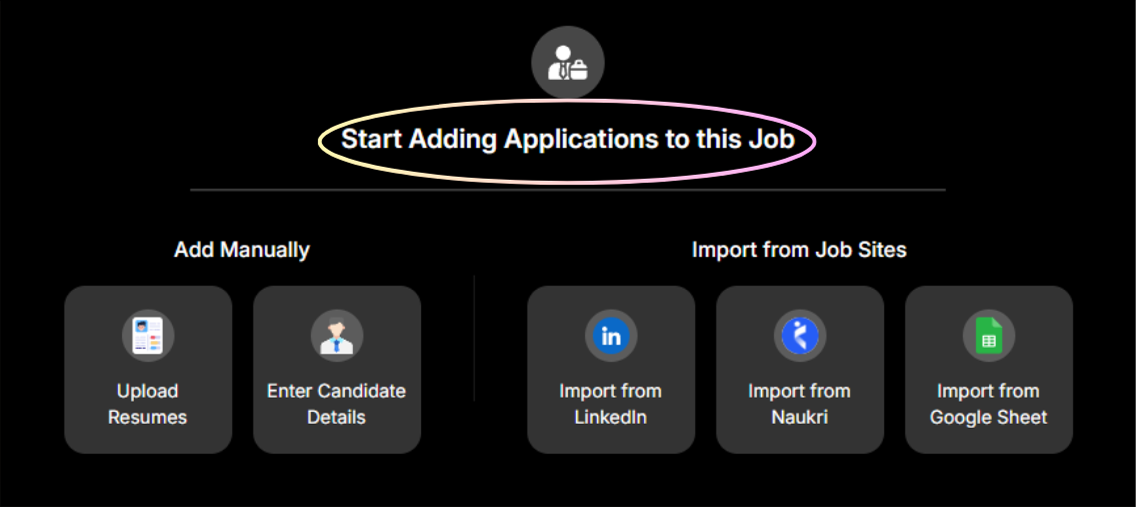
Once a job is published, open it → View Applications → Add Applications. Four methods are available:
Bulk CV Upload
- Click 'Upload Resumes' in the Add Applications popup
- Drag and drop multiple resume files (PDF, .docx supported)
- Hansa parses every resume, fills candidate profiles automatically, and generates an ACE Score
No manual data entry needed.
Import from LinkedIn
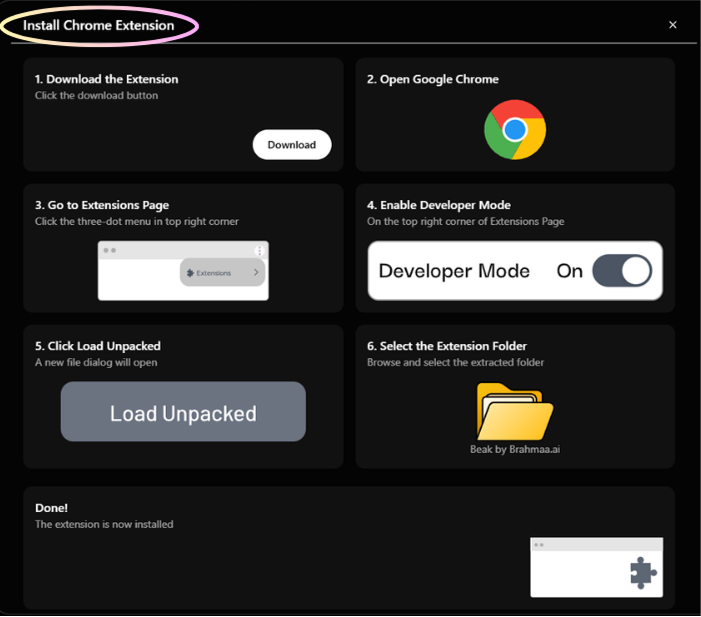
Requires the Hansa Chrome Extension to be installed first.
- Inside your Hansa job, click Add Applications → 'Import from LinkedIn'
- Install the Chrome Extension (first time only)
- Click the Download button to download the extension folder
- Open Google Chrome → three-dot menu → Extensions → Manage Extensions
- Turn on Developer Mode (top right)
- Click Load Unpacked (top left)
- Select the downloaded folder called 'Beak by Brahmaa' and click OK
- Go to your company's LinkedIn page → Jobs → find the specific job
- Click the Sync button that appears on your LinkedIn job posting
- All imported candidates appear under New Applications in Hansa
Tip: Whenever new candidates apply on LinkedIn, come back to the posting and click Sync again. It only adds new candidates — it never removes ones already imported.
Import from Naukri
Follow the same steps as LinkedIn — click 'Import from Naukri', install the Chrome Extension if not already done, go to your Naukri job posting, and click Sync.
Import from Google Sheets
- Click 'Import from Google Sheet' in the Add Applications popup
- Connect your Google account when prompted
- Select the sheet containing your candidate data
- Map the columns to the correct Hansa fields
Manual Entry
Click 'Enter Candidate Details' and fill in the candidate's information directly. Best used for individual referrals or candidates without a resume.
Was this article helpful?
Manage a Live Job